Adjustment Layers are useful non-destructive layers that allow you to make corrections and enhancements to layers and masks. They have an extra settings section in Material Properties when used as regular layers.
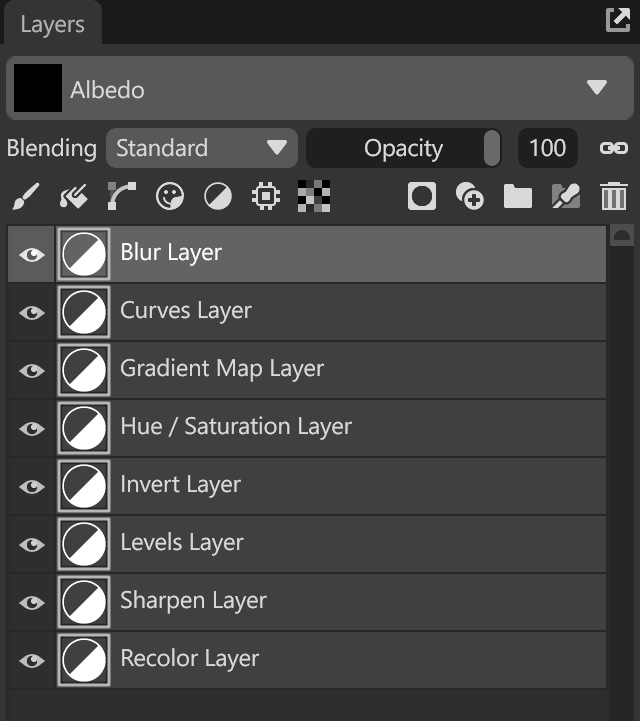
Blur #
This adjustment adds a high-quality blur to the layers or masks listed beneath it. This is UV-based, and checking the Seamless option is useful for eliminating any obvious seams created by adding blur.
| Setting | Description |
|---|---|
| Blur Radius | Sets the size or intensity of the blur effect in pixels. |
| Seamless | Blur across UV seams. |
| Reset Defaults | Reset all settings of the layer. |
Curves #
Curves allow you to adjust a spline curve throughout an image’s tonal range on a graph. You can add a point by clicking on the graph and moving it to adjust the tone. To delete a point, right-click it and choose ‘Delete’, or click and drag it outside the graph.
| Setting | Description |
|---|---|
| Channel | Sets the active color channel shown in the editor. |
| Reset | Reset the selected channel. |
| Reset All | Reset all channels. |
| Live Histogram | When enabled, the graph shows changes to the histogram in real-time. |
| Color Histogram | Display histogram in color. |
| Histogram | The upper-right area of the graph represents the highlights, the lower-left area represents the shadows, and the graph’s horizontal axis represents the input levels. |
Gradient Map #
A Gradient Map adjustment allows you to map different colors to a tonal range, with the lightest color at one end (white) and the darkest color (black) at the other. The mid-tones handle can be used to shift the balance of the gradient, and additional colors can be added between the main handles by clicking inside the gradient area.
| Setting | Description |
|---|---|
| Gradient Slider | Gradient slider configured by handles. To create a new color, click anywhere in between the main handles. To delete a handle, click and drag it outside of the slider range, or right-click and select Delete. |
| Context Menu | Right-clicking on the gradient bar or the handle will open a context menu. |
| Edit | Edit selected handle. |
| Delete | Delete the selected handle. |
| Normalize Handles | Evenly spaces all gradient points. |
| Reset Default Handles | Reset the gradient to default. |
| Copy Gradient | Copy the selected gradient. |
| Paste Gradient | Paste copied gradient. |
| Color Handle | Edit the color value for the selected handle. |
| Color Position | Edit the horizontal position of the selected color handle. |
| Alpha Value | Edit the alpha value for the selected handle. |
| Alpha Position | Edit the horizontal position of the selected alpha handle. |
Hue/Saturation #
Adjust the hue, saturation, brightness, and contrast values of the layers below this adjustment. Adjustment layers can be localized when applied as a child layer, and applying it to a mask will only include Value and Contrast sliders.
| Setting | Description |
|---|---|
| Hue | Shifts the hue around the color wheel. |
| Saturation | Shifts the saturation/desaturation of colors. |
| Value | Shifts the value of the colors. |
| Contrast | Shifts the contrast of the colors. |
| Reset Defaults | Resets the original settings for this channel. |
| Reset All | Resets the original settings for all channels in this layer. |
Invert #
Invert has no settings and simply inverts all the pixel colors and brightness values in the current layer as if the image were converted into a negative.
Levels #
Levels allows you to change a texture’s tonal range and color balance by adjusting the intensity levels of image shadows, mid-tones, and highlights. It has a histogram as a visual guide for adjusting key tones.
| Setting | Description |
|---|---|
| Channel | Sets the active color channel shown in the editor. |
| Reset | Resets the original settings for this channel. |
| Reset All | Resets the original settings for all channels. |
| Live Histogram | Visualize histogram in real-time. |
| Color Histogram | Display the histogram in color or grayscale. |
| Left Histogram Value | Adjusts the value of the darks. |
| Middle Histogram Value | Adjusts the gamma curve. |
| Right Histogram Value | Adjusts the values of the lights. |
| Black Output | Clamps the darks to a specified value. |
| White Output | Clamps the lights to a specified value. |
Sharpen #
Shapen layers add a sharpness effect, helping to define edges and detail in the layers below.
| Setting | Description |
|---|---|
| Sharpen Strength | Sets the sharpness or softness of the details. |
| Sharpen Radius | Sets the size of an area around an edge that should be sharpened. |
Recolor #
Recolor layers are used to adjust and remap the colors of existing texture data without repainting it. It allows you to modify color values non-destructively, making it easy to create variations, fine-tune material colors, and quickly iterate on different looks while preserving the underlying texture detail.
| Setting | Description |
|---|---|
| Recolor Mode | Choose the recolorization mode. |
Simple #
Applies a single color adjustment across the entire input, uniformly recoloring the texture while preserving the original value variation.
| Setting | Description |
|---|---|
| Visibility | Toggles the visibility of recolorization for the current target color. |
| Color | Sets the color target. |
| Reset Color | Reset color to its original state. |
| Invert Color | Inverts the values of the map. |
| Contrast | Adjust the contrast of the map. |
Primary Color #
Recolors the texture based on a dominant or primary color, allowing you to replace the main color while preserving secondary color information.
| Setting | Description |
|---|---|
| Visibility | Toggles the visibility of recolorization for the current target color. |
| Color | Sets the color target. |
| Reset Color | Reset color to its original state. |
| Invert Color | Inverts the values of the map. |
| Contrast | Adjust the contrast of map. |
| Tolerance | Sets the strength of the recolorization effect. |
Multiple Colors #
Allows multiple colors to be remapped simultaneously, enabling controlled recoloring of distinct color ranges within the texture.
| Setting | Description |
|---|---|
| Color Count | Determines the amount of target colors. |
| Auto-Detect | Detect how many target colors are necessary. |
| Color Reference | Source color (automatically generated). |
| Visibility | Toggles the visibility of recolorization for the current target color. |
| Color | Sets the color target. |
| Reset Color | Reset this color to its original state. |
| Invert Color | Inverts the values of the map. |
| Contrast | Adjust the contrast of the map. |
| Tolerance | Sets the strength of the recolorization effect. |
Custom Colors #
Provides full manual control over color remapping by defining custom color targets, allowing precise and tailored recolor results.
| Setting | Description |
|---|---|
| Visibility | Toggles the visibility of recolorization for the current target color. |
| Source Color | Sets the custom color, which determines the area that will be recolored. |
| Target Color | Sets the color target. |
| Reset Color | Reset this color to its original state. |
| Invert Color | Inverts the values of the map. |
| Contrast | Adjust the contrast of the map. |
| Tolerance | Sets the strength of the recolorization effect. |