The Decal layer introduced in Toolbag 5.02, makes it easy to project materials and brush presets directly onto your mesh when working in Texture Projects. It’s ideal for applying logos, stickers, graffiti, and other design elements requiring careful placement. Decal layers support all material channels, including multi-colored images. Use them to speed up production by adding ports, vents, bolts, and other mechanical details that would otherwise be time-consuming to model and bake.
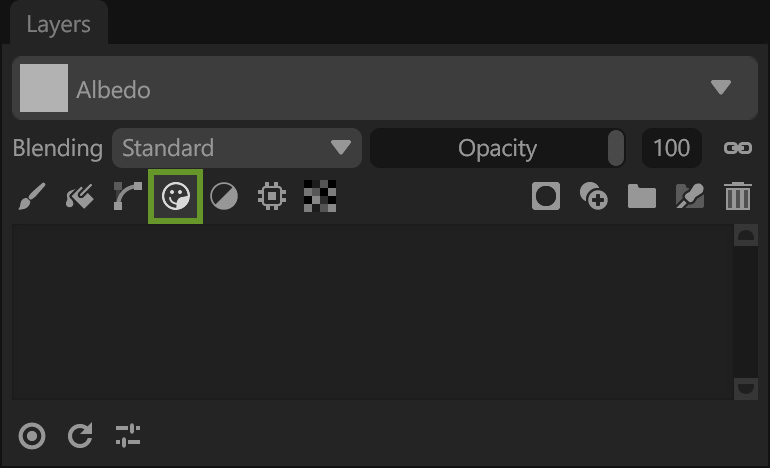
You can add a Decal layer in the Layers window using the toolbar, or drag and drop brush presets from the Library onto the mesh to instantly create a new decal aligned with the drop point. You can easily save your own brush presets to the Library to reuse later.
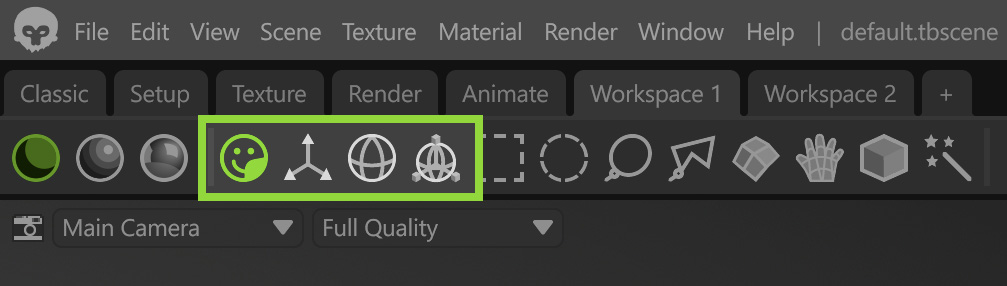
Editing the placement of a Decal Layer is easy with the viewport Decal Tool, which lets you click and drag along the surface of the mesh to reposition the element. You can also use the transform controls to adjust the size, rotation, projection distance, and falloff.
Preview Area #
Shows a preview of the layer on the sphere.
Active Maps #
The Active Maps section specifies which texture maps the Vector Layer modifies. Only selected maps will affect the vector-generated details.
Decal Layer Settings #
| Setting | Description |
|---|---|
| Projection Method | Sets the method for mapping the material properties onto the mesh. Planar – Projects vector shapes from a single flat plane. Sticker – Projects vector shapes based on the local surface orientation. |
| Size U | Sets the size of the projected plane on the horizontal axis as a ratio of the texture project’s mesh(es). |
| Size V | Sets the size of the projected plane on the vertical axis as a ratio of the texture project’s mesh(es). |
| Rotation | Sets the angle of the material properties. |
| Depth | Sets the maximum distance beneath the surface at which the projection will be drawn. Smoothly fades from the falloff value. |
| Falloff | Sets the distance beneath the surface at which the projection will start fading. |
| Offset | Sets the maximum distance above the surface at which the projection will be drawn. No falloff is applied. |
| Culling Angle | Sets the maximum angle away from the surface normal at which the projection will stop being drawn. No falloff is applied. |
Transform #
| Setting | Description |
|---|---|
| Transform Position | Sets the X, Y, and Z axis 3D space position for the projection in relation to the texture project’s mesh(es). |
| Transform Rotation | Sets the X, Y, and Z axis 3D space rotation for the projection in relation to the texture project’s mesh(es). |
Symmetry #
Symmetry controls how vector shapes are mirrored during creation and editing. It allows the use of standard (axis-based) or radial symmetry, making it easier to create repeating details while editing a single shape.
Material Properties #
The Material Properties control how the vector details impact the material. It lets you adjust how the vector shapes affect different material settings, such as color, roughness, and other surface properties, to match the desired look.
Decal Alpha
| Setting | Description |
|---|---|
| Decal Alpha Map | Load or replace the Decal Alpha texture map. |
| Channel | Select between the Red, Green, or Blue channel of a texture map. |
| Frames | Specifies the total number of frames contained within a texture. Note: This is useful when using a sprite sheet. |
| Current Frame | Defines which frame of the texture is currently selected. |
| Use Frame For All Maps | Determines whether the same frame is used for all maps. |
| Decal Alpha | Adjust the opacity for the Decal Alpha texture map. |
| Contrast | Adjust the opacity for the Decal Alpha texture map. |